> ## Documentation Index
> Fetch the complete documentation index at: https://summary-docs.fanocloud.com/llms.txt
> Use this file to discover all available pages before exploring further.
# Quick Start
> Go from zero to your first AI-powered meeting summary in under 2 minutes.
## Step 1 — Accept your invitation
Your company admin will send you an invitation email with the subject line:
> "You've been invited to join \[Company Name] on Fano Summary Agent"
Click **"Set Up Your Account"** in the email. You'll land on a setup page where you:
1. See your email (pre-filled) and company name.
2. Enter your **full name**.
3. Create a **password** (8+ characters, with uppercase, lowercase, and a number).
4. Click **"Activate Account."**
You're now logged in and taken to the Fano Summary dashboard.
Already have an account? Go to [meetings.fanocloud.com](https://meetings.fanocloud.com) and sign in with your email and password.
## Step 2 — Connect your calendar
Head to **Settings → Integration** and connect your **Microsoft Outlook** calendar. This lets Fano see your upcoming meetings and join them automatically.
See [Connect Your Calendar](/getting-started/connect-calendar) for the full walkthrough.
## Step 3 — Set your preferences
Before your first meeting, take 30 seconds to configure two things in **Settings**:
| Setting | Where to find it | What to set |
| -------------------- | -------------------------------- | ---------------------------------------------------------------------------------------------- |
| **Summary Language** | Settings → Profile & Preferences | Choose the language for your AI summaries |
| **Bot Auto-join** | Settings → Bot Preferences | "Join all meetings" is on by default — leave it, or turn it off if you prefer manual recording |
## Step 4 — Have a meeting
That's it — just join your next call as usual. Fano will:
1. **Join automatically** as a visible note-taker bot.
2. **Record and transcribe** the entire meeting.
3. **Generate a summary** when the call ends.
4. **Email you a recap** if you have email notifications turned on.
## Step 5 — Review your notes
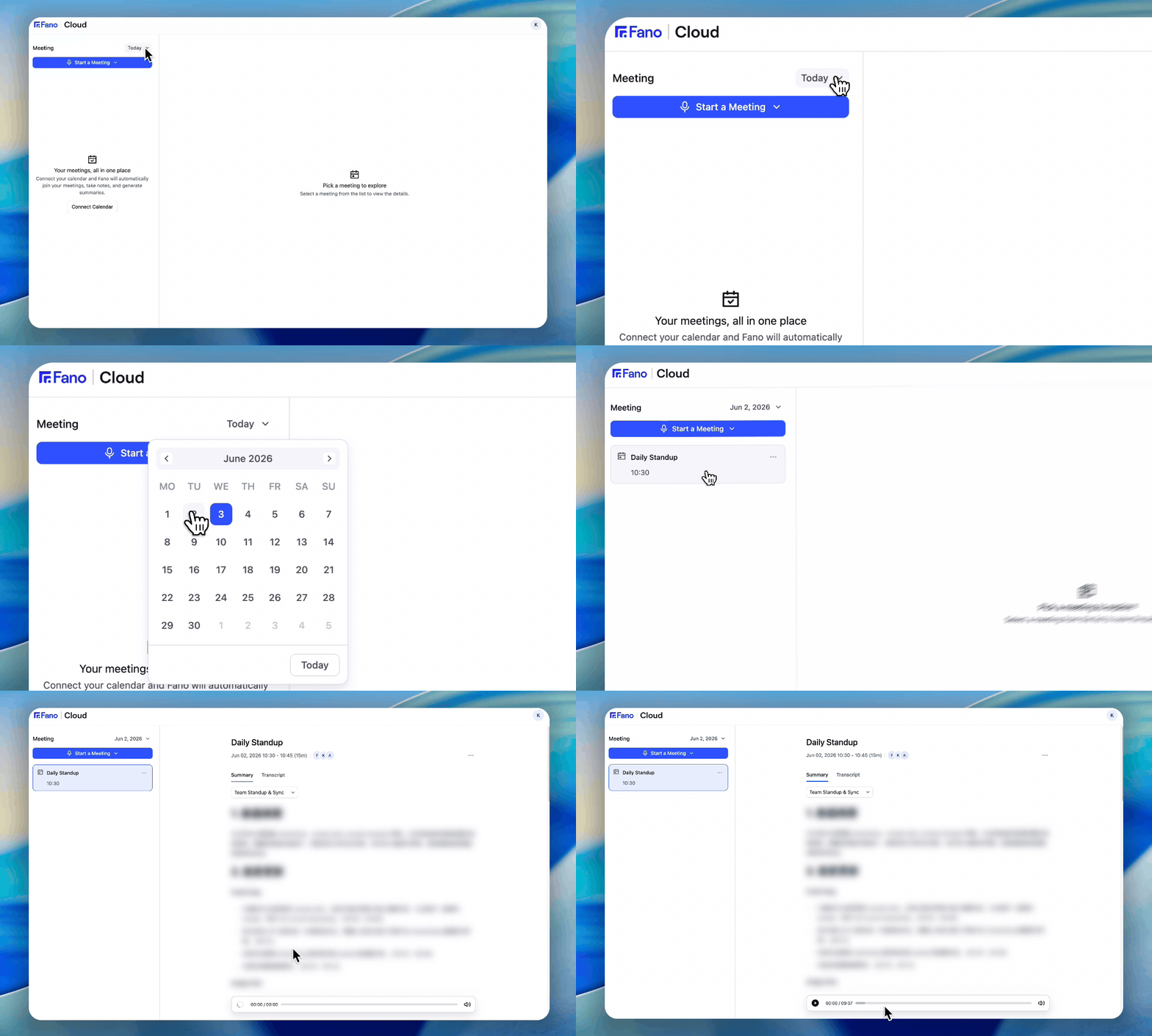 Your meetings appear in the left sidebar, sorted by date. Click any meeting to see:
* **Summary** — AI-generated notes organized by topic
* **Transcript** — Full transcript with speaker labels and timestamps
* **Audio** — Playback bar at the bottom to re-listen to any part
Don't like the default summary format? Use the **template dropdown** above the summary to switch between formats like 1-on-1, Team Standup, Project Kick-off, and more. The summary regenerates instantly.
## What's next?
Learn about auto-join, manual recording, and uploading.
Explore the 9 built-in templates for different meeting types.
Your meetings appear in the left sidebar, sorted by date. Click any meeting to see:
* **Summary** — AI-generated notes organized by topic
* **Transcript** — Full transcript with speaker labels and timestamps
* **Audio** — Playback bar at the bottom to re-listen to any part
Don't like the default summary format? Use the **template dropdown** above the summary to switch between formats like 1-on-1, Team Standup, Project Kick-off, and more. The summary regenerates instantly.
## What's next?
Learn about auto-join, manual recording, and uploading.
Explore the 9 built-in templates for different meeting types.