> ## Documentation Index
> Fetch the complete documentation index at: https://summary-docs.fanocloud.com/llms.txt
> Use this file to discover all available pages before exploring further.
# Custom Templates
> Build your own summary templates so every meeting is summarized in the structure and level of detail you actually need.
The nine built-in templates cover common meeting types, but they can't cover everyone. **Custom Templates** let you define your own summary structure — your section headings, your instructions — and apply it to any meeting.
## Open Manage Template
Everything lives in the **Manage Template** dialog, which you open from the template picker on any meeting's Summary tab.
The dialog has two tabs:
| Tab | What's in it |
| ---------------- | ----------------------------------------------- |
| **My Template** | The templates you've created |
| **Fano Library** | Fano's built-in templates, ready to use or copy |
## Build a template from scratch
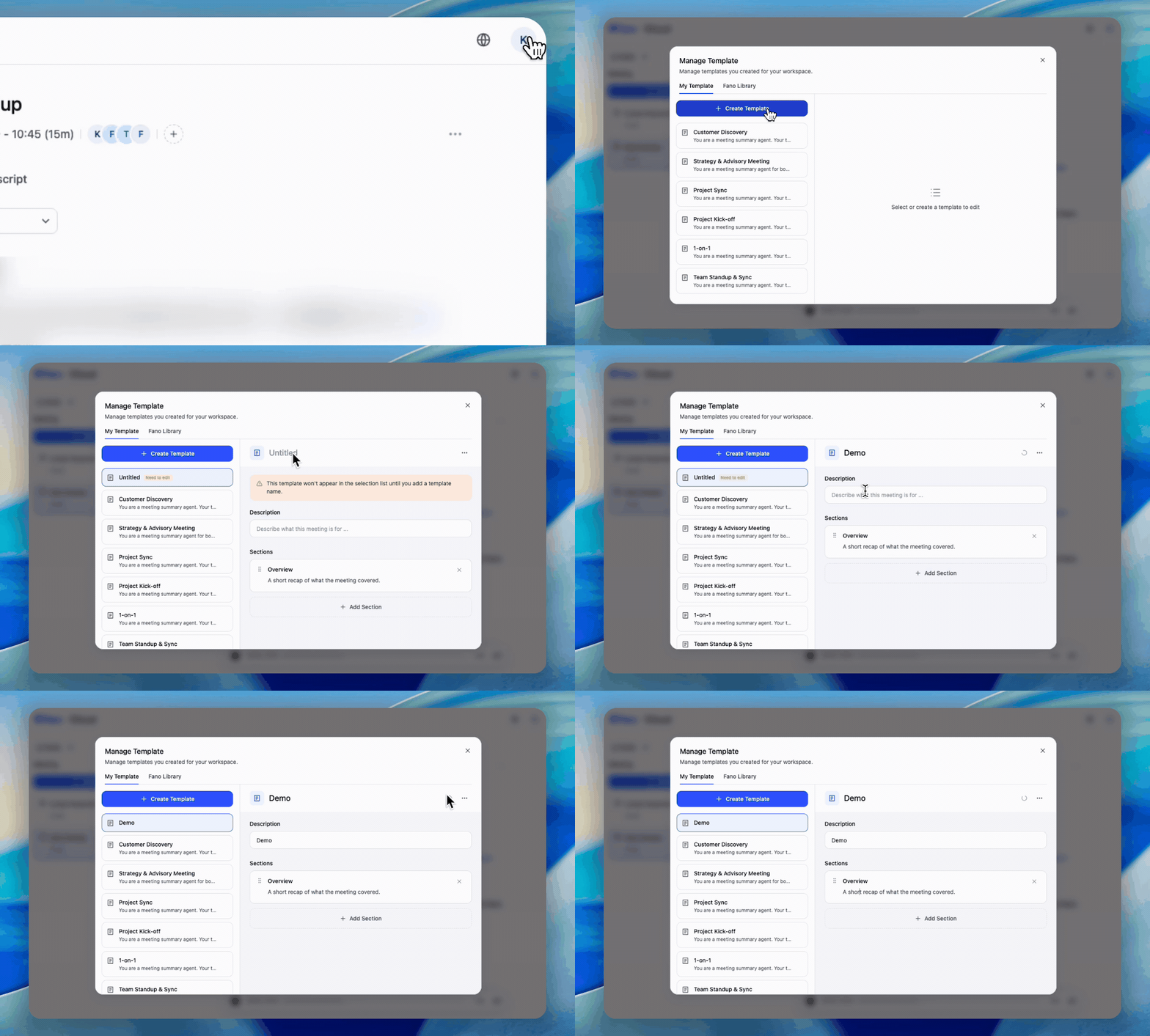 1. In **Manage Template → My Template**, click **+ Create Template**. A new template called **Untitled** appears and opens for editing.
2. **Name it** — click **Untitled** at the top of the editor and type. Until you do, a notice tells you the template won't appear in the selection list.
3. Add a **description** in the "Describe what this meeting is for…" field, so you can tell your templates apart later.
4. Shape the **sections**. Every new template starts with one called **Overview** ("A short recap of what the meeting covered."). Each section has:
* a **title** — the heading that appears in the summary
* an **instruction** — what you want the AI to capture under that heading
5. Click **+ Add Section** for more, the **×** to remove one, and drag the handle on the left to reorder.
Edits **save automatically**. There's no Save button to remember.
The instruction is what does the work. A section titled "Risks" with the instruction *"List any risk, dependency or blocker raised, and who raised it"* produces a far more useful section than a title on its own.
## Start from the Fano Library
If a built-in template is close to what you want, copy it instead of starting over.
1. In **Manage Template → My Template**, click **+ Create Template**. A new template called **Untitled** appears and opens for editing.
2. **Name it** — click **Untitled** at the top of the editor and type. Until you do, a notice tells you the template won't appear in the selection list.
3. Add a **description** in the "Describe what this meeting is for…" field, so you can tell your templates apart later.
4. Shape the **sections**. Every new template starts with one called **Overview** ("A short recap of what the meeting covered."). Each section has:
* a **title** — the heading that appears in the summary
* an **instruction** — what you want the AI to capture under that heading
5. Click **+ Add Section** for more, the **×** to remove one, and drag the handle on the left to reorder.
Edits **save automatically**. There's no Save button to remember.
The instruction is what does the work. A section titled "Risks" with the instruction *"List any risk, dependency or blocker raised, and who raised it"* produces a far more useful section than a title on its own.
## Start from the Fano Library
If a built-in template is close to what you want, copy it instead of starting over.
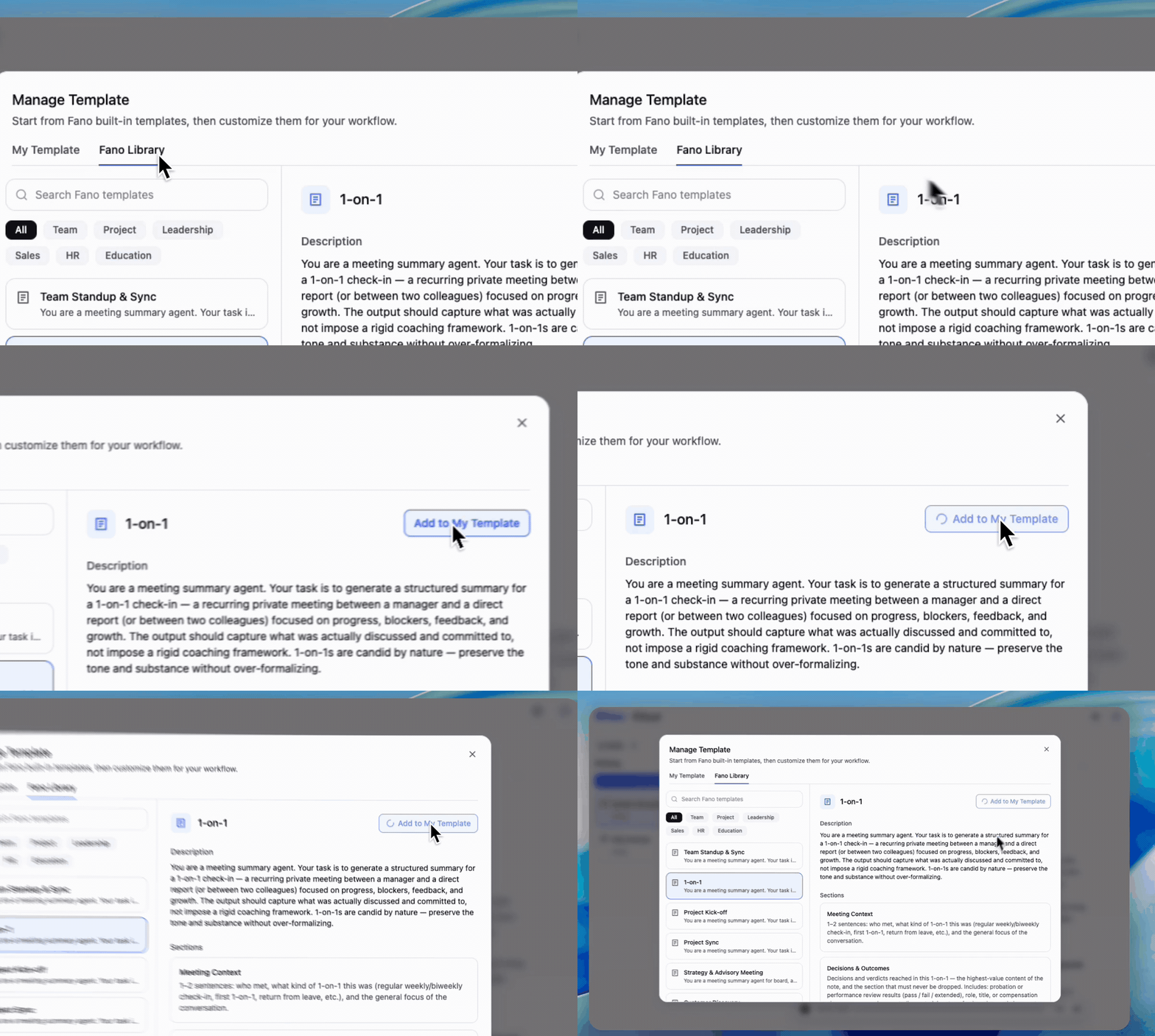 1. Open **Manage Template → Fano Library**.
2. Find a template — use **Search Fano templates**, or filter by category: **Team**, **Project**, **Leadership**, **Sales**, **HR**, **Education**.
3. Click one to preview its description and full section list.
4. Click **Add to My Template**. You'll see a brief loading state, then an **Added** confirmation.
5. Open your copy under **My Template** and tailor it — rename sections, rewrite instructions, add or drop sections.
Copying doesn't change the original library template, and you can copy the same one more than once if you want variants of it.
## Apply a custom template
Your finished templates appear under a **My Template** group in the template picker, alongside the Fano built-ins:
1. Open a meeting and go to the **Summary** tab.
2. Click the **template dropdown**.
3. Pick a template from **My Template**. A check mark shows which one is currently applied.
4. The summary regenerates in your structure.
The built-in **General** template is always available as the default, and a **Manage Template** shortcut in the picker takes you straight to the full dialog.
## Why a template might not appear in the picker
A template needs a **name** before it can be used. Until then it stays a draft:
* it shows as **Untitled** in the template list
* it carries a **Need to edit** badge
* it's **kept out of the template picker**, so you can't accidentally apply an unfinished template
The editor shows a notice explaining exactly this while the name is missing.
## Templates during onboarding
When you first join, Fano prepares a set of **starter templates suggested for your role**, and they appear under **My Template** — so you have something useful to summarize with from day one, before you've built anything yourself. Treat them as a starting point: copy, rename, and rewrite the instructions to match how your team actually works.
## Deleting a template
Deleting asks for confirmation first, and warns you about the consequence:
Summaries that were already generated with a template **will no longer appear on their meetings** once that template is deleted. If you need those summaries, [export them](/meetings/export) before deleting the template.
The transcript and audio for those meetings are unaffected — you can always regenerate a summary with a different template.
## What's next?
See the nine Fano templates and what each one captures.
Fine-tune a specific summary by hand.
1. Open **Manage Template → Fano Library**.
2. Find a template — use **Search Fano templates**, or filter by category: **Team**, **Project**, **Leadership**, **Sales**, **HR**, **Education**.
3. Click one to preview its description and full section list.
4. Click **Add to My Template**. You'll see a brief loading state, then an **Added** confirmation.
5. Open your copy under **My Template** and tailor it — rename sections, rewrite instructions, add or drop sections.
Copying doesn't change the original library template, and you can copy the same one more than once if you want variants of it.
## Apply a custom template
Your finished templates appear under a **My Template** group in the template picker, alongside the Fano built-ins:
1. Open a meeting and go to the **Summary** tab.
2. Click the **template dropdown**.
3. Pick a template from **My Template**. A check mark shows which one is currently applied.
4. The summary regenerates in your structure.
The built-in **General** template is always available as the default, and a **Manage Template** shortcut in the picker takes you straight to the full dialog.
## Why a template might not appear in the picker
A template needs a **name** before it can be used. Until then it stays a draft:
* it shows as **Untitled** in the template list
* it carries a **Need to edit** badge
* it's **kept out of the template picker**, so you can't accidentally apply an unfinished template
The editor shows a notice explaining exactly this while the name is missing.
## Templates during onboarding
When you first join, Fano prepares a set of **starter templates suggested for your role**, and they appear under **My Template** — so you have something useful to summarize with from day one, before you've built anything yourself. Treat them as a starting point: copy, rename, and rewrite the instructions to match how your team actually works.
## Deleting a template
Deleting asks for confirmation first, and warns you about the consequence:
Summaries that were already generated with a template **will no longer appear on their meetings** once that template is deleted. If you need those summaries, [export them](/meetings/export) before deleting the template.
The transcript and audio for those meetings are unaffected — you can always regenerate a summary with a different template.
## What's next?
See the nine Fano templates and what each one captures.
Fine-tune a specific summary by hand.