> ## Documentation Index
> Fetch the complete documentation index at: https://summary-docs.fanocloud.com/llms.txt
> Use this file to discover all available pages before exploring further.
# Search & Tags
> Search across every recorded meeting, group them with your own tags, and delete the ones you no longer need.
After a few weeks the meeting list gets long. Fano gives you three ways to keep it usable: **search**, **tags**, and **delete**.
## Search your meetings
Search covers all of your recorded meetings, so you can find a discussion without remembering when it happened.
1. Click the **search icon** in the **Meeting** sidebar header.
2. Before you type, the panel lists your **recent meetings** — often the one you want is already there.
3. Type what you're looking for. Results show the meeting name with your term highlighted, plus the date and participant count.
4. Press **↵** to open the highlighted result, or click it.
Use **↑ ↓** to move through results and **esc** to close.
### Narrowing results
Two filters sit at the top of the search panel:
| Filter | Use it to |
| ---------- | ---------------------------------------------- |
| **People** | Limit to meetings a particular person attended |
| **Date** | Limit to a date or range |
Search is the fastest route to "what did we actually agree?" Search the decision, open the meeting, then click a [timestamp](/meetings/playback) to hear it in context.
## Tag your meetings
Tags are labels you create yourself — a client name, a project, a workstream, a recurring ritual.
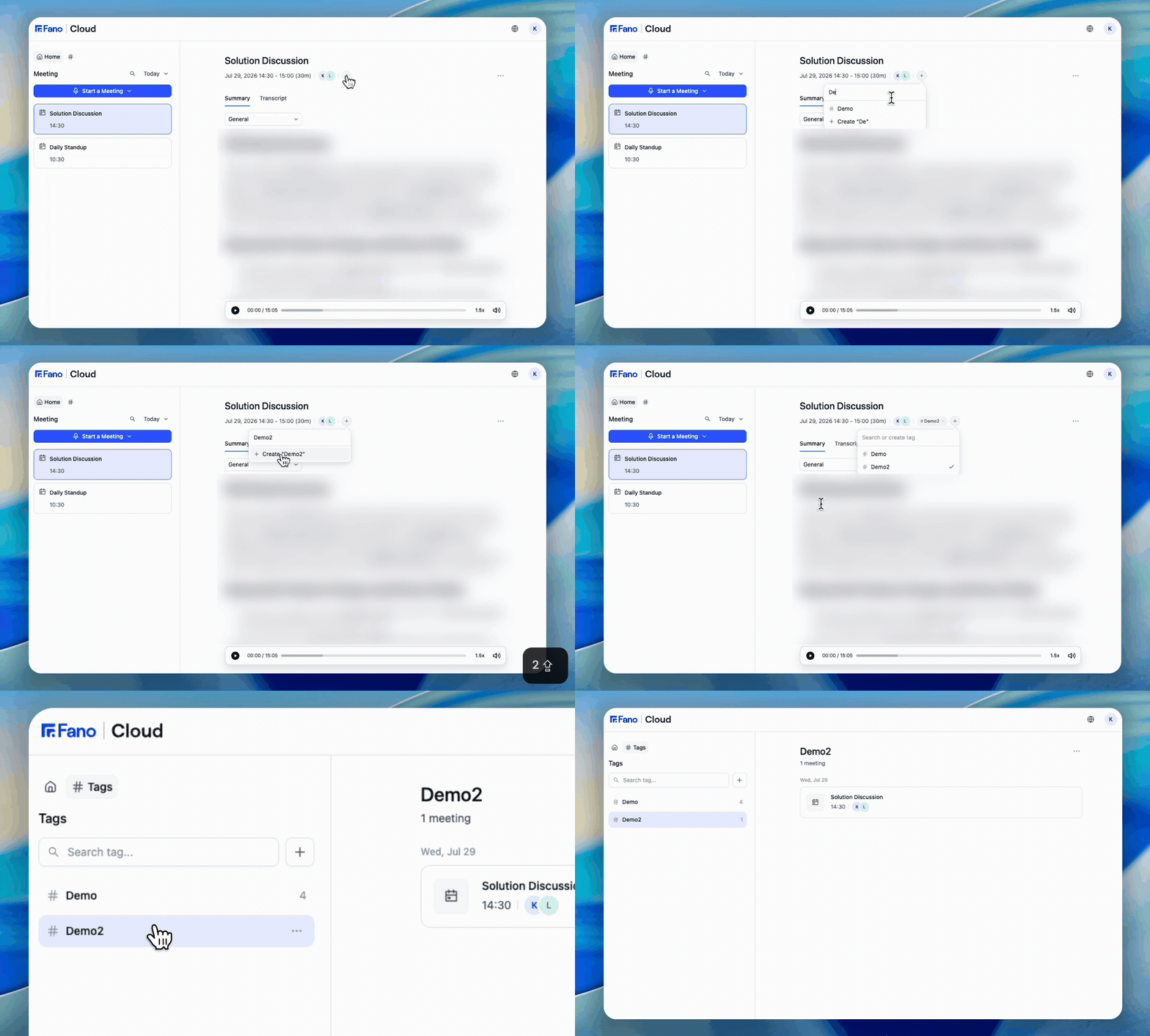 ### Add a tag to a meeting
1. Open the meeting and click the **+** button next to the participant avatars.
2. In the **Search or create tag** box, start typing.
3. Pick an existing tag from the list, or choose the **Create "…"** option to make a new one with the text you typed.
The tag appears as a chip in the meeting header. Click the **×** on the chip to remove it.
Reopen the **+** popover any time to see all your tags, with a check mark against the ones already on this meeting. A meeting can carry more than one tag.
Tags are **private to you**. Nobody else in your workspace sees your tags, so you can name them however makes sense to you.
### Browse meetings by tag
1. Click the **#** icon next to **Home** in the sidebar.
2. The **Tags** panel lists every tag you've created with the number of meetings on each.
3. Click a tag to see its meetings, grouped by date.
Use the **Search tag** box to find a tag when the list gets long, and the **+** button to create one directly from this panel.
Two tags per meeting is usually enough: one for **who** (client, team) and one for **what** (project, ritual). Deep tag hierarchies take more upkeep than they repay.
## Delete a meeting
1. Open the meeting.
2. Open the **⋯** menu.
3. Select **Delete**.
Deletion is **permanent**. It removes the meeting, its transcript, its summary and its audio. [Export](/meetings/export) anything you need to keep before you delete.
Deleting a meeting does not refund the minutes it used — [usage](/settings/usage) is counted when the meeting is recorded.
## What's next?
Save a copy before deleting anything.
Jump from a summary point to the moment it was said.
### Add a tag to a meeting
1. Open the meeting and click the **+** button next to the participant avatars.
2. In the **Search or create tag** box, start typing.
3. Pick an existing tag from the list, or choose the **Create "…"** option to make a new one with the text you typed.
The tag appears as a chip in the meeting header. Click the **×** on the chip to remove it.
Reopen the **+** popover any time to see all your tags, with a check mark against the ones already on this meeting. A meeting can carry more than one tag.
Tags are **private to you**. Nobody else in your workspace sees your tags, so you can name them however makes sense to you.
### Browse meetings by tag
1. Click the **#** icon next to **Home** in the sidebar.
2. The **Tags** panel lists every tag you've created with the number of meetings on each.
3. Click a tag to see its meetings, grouped by date.
Use the **Search tag** box to find a tag when the list gets long, and the **+** button to create one directly from this panel.
Two tags per meeting is usually enough: one for **who** (client, team) and one for **what** (project, ritual). Deep tag hierarchies take more upkeep than they repay.
## Delete a meeting
1. Open the meeting.
2. Open the **⋯** menu.
3. Select **Delete**.
Deletion is **permanent**. It removes the meeting, its transcript, its summary and its audio. [Export](/meetings/export) anything you need to keep before you delete.
Deleting a meeting does not refund the minutes it used — [usage](/settings/usage) is counted when the meeting is recorded.
## What's next?
Save a copy before deleting anything.
Jump from a summary point to the moment it was said.