> ## Documentation Index
> Fetch the complete documentation index at: https://summary-docs.fanocloud.com/llms.txt
> Use this file to discover all available pages before exploring further.
# Recording Meetings
> How Fano captures your meetings — automatically via calendar sync, manually with Record Now, or by uploading an existing recording.
Fano Summary gives you three ways to get a meeting into the system: **automatic** (via calendar sync), **manual** (Record Now), and **upload** (bring your own recording). All three produce the same result — a full transcript, AI summary, and audio playback.
## Automatic recording (recommended)
If you've [connected your calendar](/getting-started/connect-calendar), Fano handles everything:
1. Your meeting starts at the scheduled time.
2. The **Fano note-taker bot** joins the call automatically.
3. All participants see the bot as an attendee.
4. When the meeting ends, Fano processes the recording and generates your summary.
The bot joins based on your **Auto-join Mode** setting (found in **Settings → Bot Preferences**). By default, it's set to **Join all meetings**.
Want to skip recording for a specific meeting? You can remove the Fano bot from the call like any other participant.
## Manual recording — Record Now
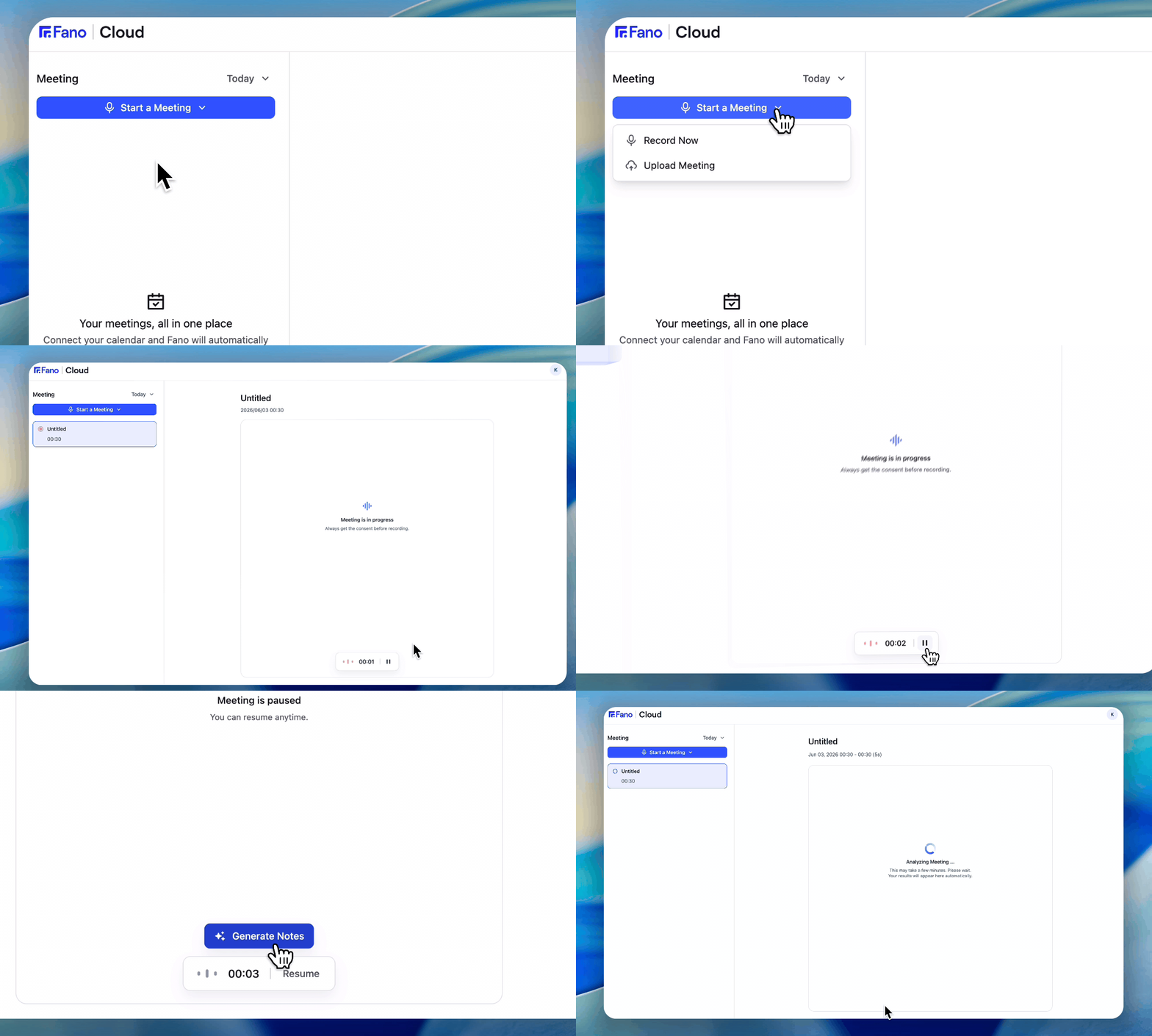 For unscheduled calls or meetings without a calendar event:
1. Click **Start a Meeting** in the top-left of the dashboard.
2. Select **Record Now**.
3. Fano begins recording immediately using your device microphone.
4. Click **Stop** when the meeting ends.
This is useful for in-person meetings, phone calls, or spontaneous conversations you want to capture.
## Upload an existing recording
If you recorded a meeting outside of Fano — on your phone, a voice recorder, or another app — you can upload the file and still get the full Fano experience: transcript, summary, and playback.
1. Click **Start a Meeting** in the top-left of the dashboard.
2. Select **Upload Meeting**.
3. Choose your audio or video file. Fano accepts common formats including MP3, WAV, M4A, MP4, and WebM.
4. Fano processes the file — this may take a few minutes depending on the length.
5. Once complete, the meeting appears in your sidebar with a full transcript and summary.
Uploading works well for in-person meetings recorded on a phone, or for processing recordings from platforms that don't support live bot integration.
## Which method should I use?
| Scenario | Method |
| ---------------------------------------- | -------------------------------- |
| Scheduled meeting with a calendar event | Automatic (bot joins on its own) |
| Ad-hoc meeting or in-person conversation | Record Now |
| Already have a recording file | Upload Meeting |
## What participants see
For unscheduled calls or meetings without a calendar event:
1. Click **Start a Meeting** in the top-left of the dashboard.
2. Select **Record Now**.
3. Fano begins recording immediately using your device microphone.
4. Click **Stop** when the meeting ends.
This is useful for in-person meetings, phone calls, or spontaneous conversations you want to capture.
## Upload an existing recording
If you recorded a meeting outside of Fano — on your phone, a voice recorder, or another app — you can upload the file and still get the full Fano experience: transcript, summary, and playback.
1. Click **Start a Meeting** in the top-left of the dashboard.
2. Select **Upload Meeting**.
3. Choose your audio or video file. Fano accepts common formats including MP3, WAV, M4A, MP4, and WebM.
4. Fano processes the file — this may take a few minutes depending on the length.
5. Once complete, the meeting appears in your sidebar with a full transcript and summary.
Uploading works well for in-person meetings recorded on a phone, or for processing recordings from platforms that don't support live bot integration.
## Which method should I use?
| Scenario | Method |
| ---------------------------------------- | -------------------------------- |
| Scheduled meeting with a calendar event | Automatic (bot joins on its own) |
| Ad-hoc meeting or in-person conversation | Record Now |
| Already have a recording file | Upload Meeting |
## What participants see
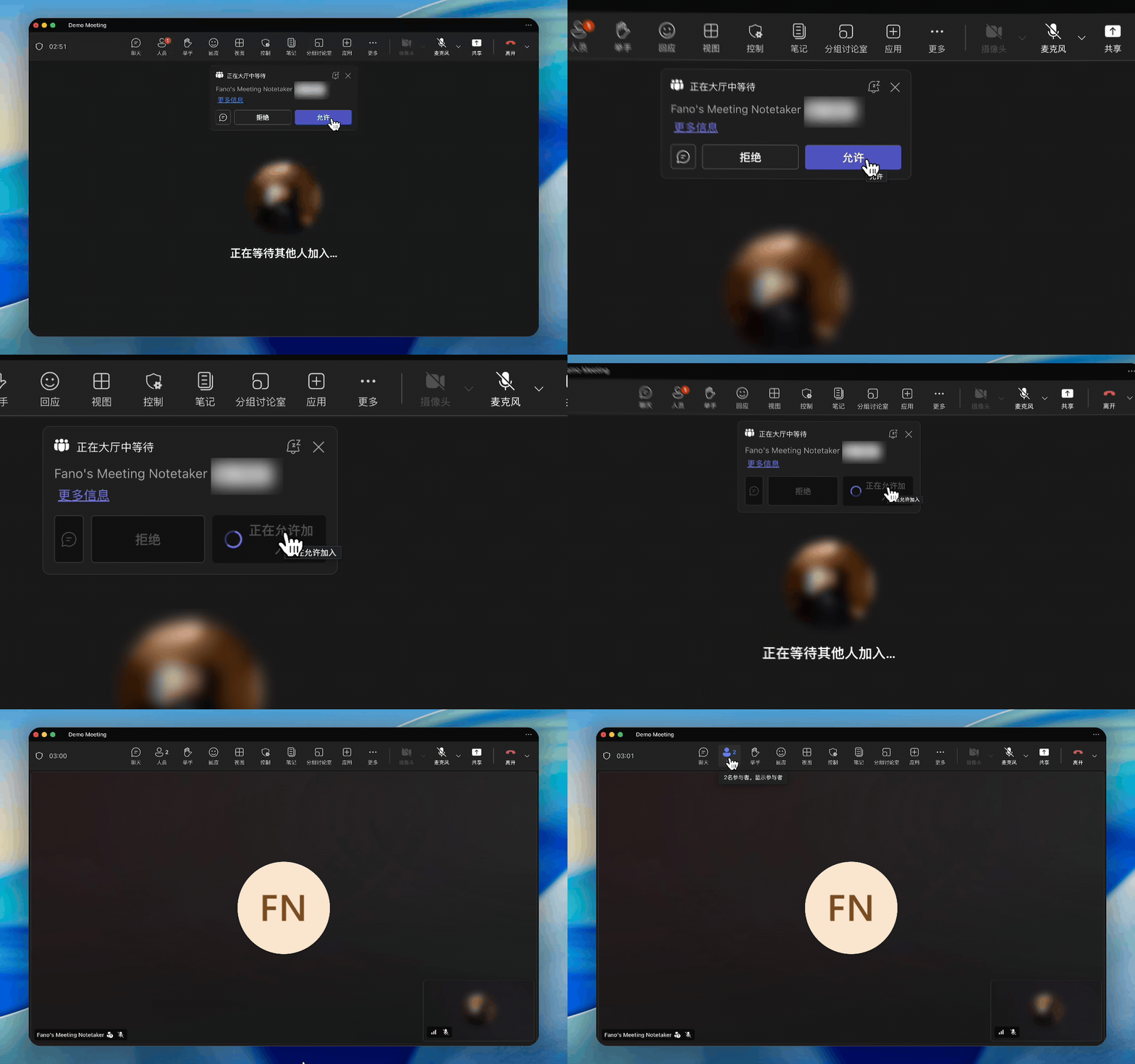 When the Fano bot joins a meeting, it appears as a named participant (e.g., "Fano Note-taker"). All attendees can see it in the participant list. The bot does not speak, share its screen, or interact — it only listens and records.
Make sure your organization's meeting recording policies allow AI note-taking bots. It's good practice to let participants know the meeting is being recorded.
When the Fano bot joins a meeting, it appears as a named participant (e.g., "Fano Note-taker"). All attendees can see it in the participant list. The bot does not speak, share its screen, or interact — it only listens and records.
Make sure your organization's meeting recording policies allow AI note-taking bots. It's good practice to let participants know the meeting is being recorded.