> ## Documentation Index
> Fetch the complete documentation index at: https://summary-docs.fanocloud.com/llms.txt
> Use this file to discover all available pages before exploring further.
# Meeting Summaries
> How Fano's AI turns your meetings into structured, actionable notes — with 9 built-in templates for different meeting types.
Every meeting in Fano Summary gets an AI-generated summary. It distills the full conversation into a structured document — pulling out decisions, action items, and key discussion points so you don't have to.
## Viewing a summary
1. Open [Fano Summary](https://meetings.fanocloud.com/app/meetings).
2. Click any meeting in the left sidebar.
3. The **Summary** tab is selected by default, showing the AI-generated notes.
Summaries are generated automatically after a meeting ends. If you have **Email Recap Notification** turned on, you'll also receive the summary by email.
## How summaries are structured
The exact structure depends on which template is applied, but a typical summary includes:
* **Meeting overview** — date, time, duration, participants
* **Key topics discussed** — organized by theme or agenda item
* **Decisions made** — anything the group agreed on
* **Action items** — tasks assigned, with owners where identifiable
## Summary templates
Not every meeting is the same — a standup needs a different summary format than a board advisory session. Fano Summary includes 9 purpose-built templates so the AI structures your notes in the way that's most useful.
| Template | Best for | What it captures |
| ------------------------------- | -------------------------------------- | -------------------------------------------------------------------------------------- |
| **General** | Any meeting | Decisions and action items, organized by topic |
| **Team Standup & Sync** | Standups, weekly syncs, sprint reviews | Status updates, blockers, and next steps per person |
| **1-on-1** | Manager–report check-ins | Progress, blockers, feedback, and growth topics |
| **Project Kick-off** | New project launches | Objectives, scope, roles, timeline, and risks |
| **Project Sync** | Recurring project check-ins | Progress by workstream, blockers, and scope changes |
| **Strategy & Advisory Meeting** | Board or leadership sessions | Strategic guidance, decisions, and action items |
| **Customer Discovery** | User research calls | Pain points, workflows, JTBD, key quotes, and buying signals |
| **Candidate Interview** | Hiring interviews | Candidate snapshot, evidence by question, competency evaluation, and follow-up actions |
| **School Meeting Notes** | Faculty syncs, staff briefings | Curriculum reviews, administrative updates, and action items |
### Switching templates
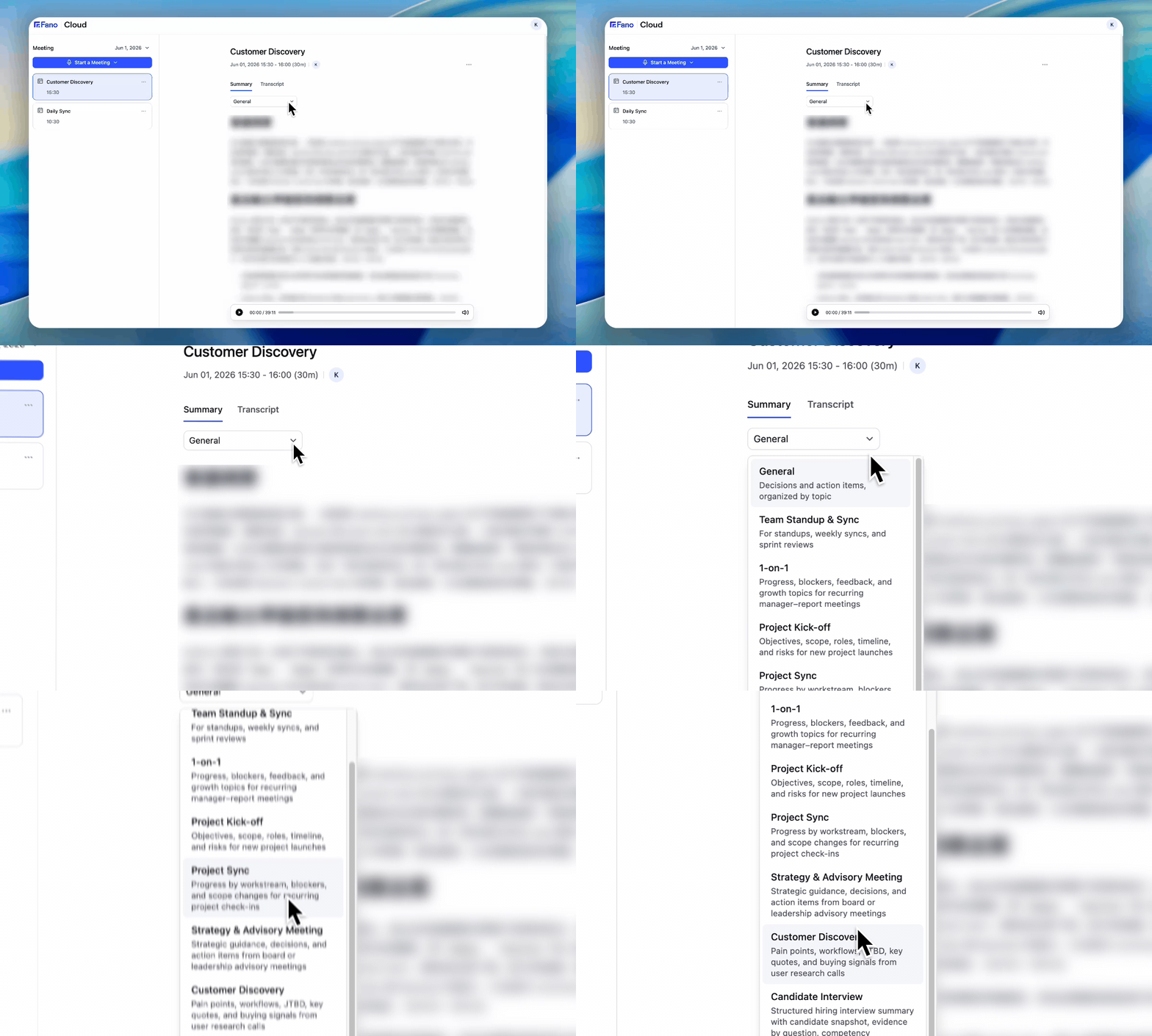 1. On the meeting detail page, click the **template dropdown** below the Summary/Transcript tabs (shows "General" by default).
2. Select the template that matches your meeting type.
3. The summary regenerates instantly in the new format.
You can switch templates as many times as you like — it doesn't affect the underlying transcript or recording.
If you're not sure which template to use, start with **General**. It works well for most meetings. Switch to a specialized template when you want more structured output for a specific meeting type.
### Template details
The default all-purpose template. Organizes the summary into key discussion topics, decisions made, and action items. Works well when you just want a clean recap of what happened.
Designed for recurring team rituals. Captures what each person shared — what they did, what they're working on, and what's blocking them. Great for standups, weekly syncs, and sprint reviews.
Tailored for manager–report conversations. Pulls out progress updates, blockers, feedback exchanged, and growth/career topics. Helps both sides track what was discussed across recurring 1:1s.
Captures the essentials of a new project launch: objectives, scope boundaries, assigned roles, key milestones, timeline, and identified risks. Useful as a reference doc for the rest of the project.
For recurring project check-ins. Organizes updates by workstream, highlights blockers and dependencies, and flags any scope changes. Keeps the project team aligned between syncs.
Built for high-level sessions with advisors, board members, or leadership. Focuses on strategic guidance offered, decisions reached, and follow-up actions with owners.
Structured for user research and sales discovery calls. Extracts pain points, current workflows, jobs-to-be-done, key quotes (verbatim), and buying signals. A goldmine for product and sales teams.
Creates a structured hiring debrief. Includes a candidate snapshot, evidence mapped to each interview question, competency ratings, and recommended follow-up actions. Streamlines hiring decisions.
Designed for education settings — faculty syncs, staff briefings, curriculum reviews. Captures administrative decisions, teaching-related updates, and action items by department or individual.
## Summary language
Summaries are generated in the language you set in **Settings → Profile & Preferences → Summary Language**. Changing this setting affects future summaries and any re-generated summaries.
The transcript language is detected automatically based on what was spoken. The summary language is a separate setting — you can have a Cantonese transcript with an English summary, for example.
1. On the meeting detail page, click the **template dropdown** below the Summary/Transcript tabs (shows "General" by default).
2. Select the template that matches your meeting type.
3. The summary regenerates instantly in the new format.
You can switch templates as many times as you like — it doesn't affect the underlying transcript or recording.
If you're not sure which template to use, start with **General**. It works well for most meetings. Switch to a specialized template when you want more structured output for a specific meeting type.
### Template details
The default all-purpose template. Organizes the summary into key discussion topics, decisions made, and action items. Works well when you just want a clean recap of what happened.
Designed for recurring team rituals. Captures what each person shared — what they did, what they're working on, and what's blocking them. Great for standups, weekly syncs, and sprint reviews.
Tailored for manager–report conversations. Pulls out progress updates, blockers, feedback exchanged, and growth/career topics. Helps both sides track what was discussed across recurring 1:1s.
Captures the essentials of a new project launch: objectives, scope boundaries, assigned roles, key milestones, timeline, and identified risks. Useful as a reference doc for the rest of the project.
For recurring project check-ins. Organizes updates by workstream, highlights blockers and dependencies, and flags any scope changes. Keeps the project team aligned between syncs.
Built for high-level sessions with advisors, board members, or leadership. Focuses on strategic guidance offered, decisions reached, and follow-up actions with owners.
Structured for user research and sales discovery calls. Extracts pain points, current workflows, jobs-to-be-done, key quotes (verbatim), and buying signals. A goldmine for product and sales teams.
Creates a structured hiring debrief. Includes a candidate snapshot, evidence mapped to each interview question, competency ratings, and recommended follow-up actions. Streamlines hiring decisions.
Designed for education settings — faculty syncs, staff briefings, curriculum reviews. Captures administrative decisions, teaching-related updates, and action items by department or individual.
## Summary language
Summaries are generated in the language you set in **Settings → Profile & Preferences → Summary Language**. Changing this setting affects future summaries and any re-generated summaries.
The transcript language is detected automatically based on what was spoken. The summary language is a separate setting — you can have a Cantonese transcript with an English summary, for example.