

Open Manage Template
Everything lives in the Manage Template dialog, which you open from the template picker on any meeting’s Summary tab. The dialog has two tabs:Build a template from scratch
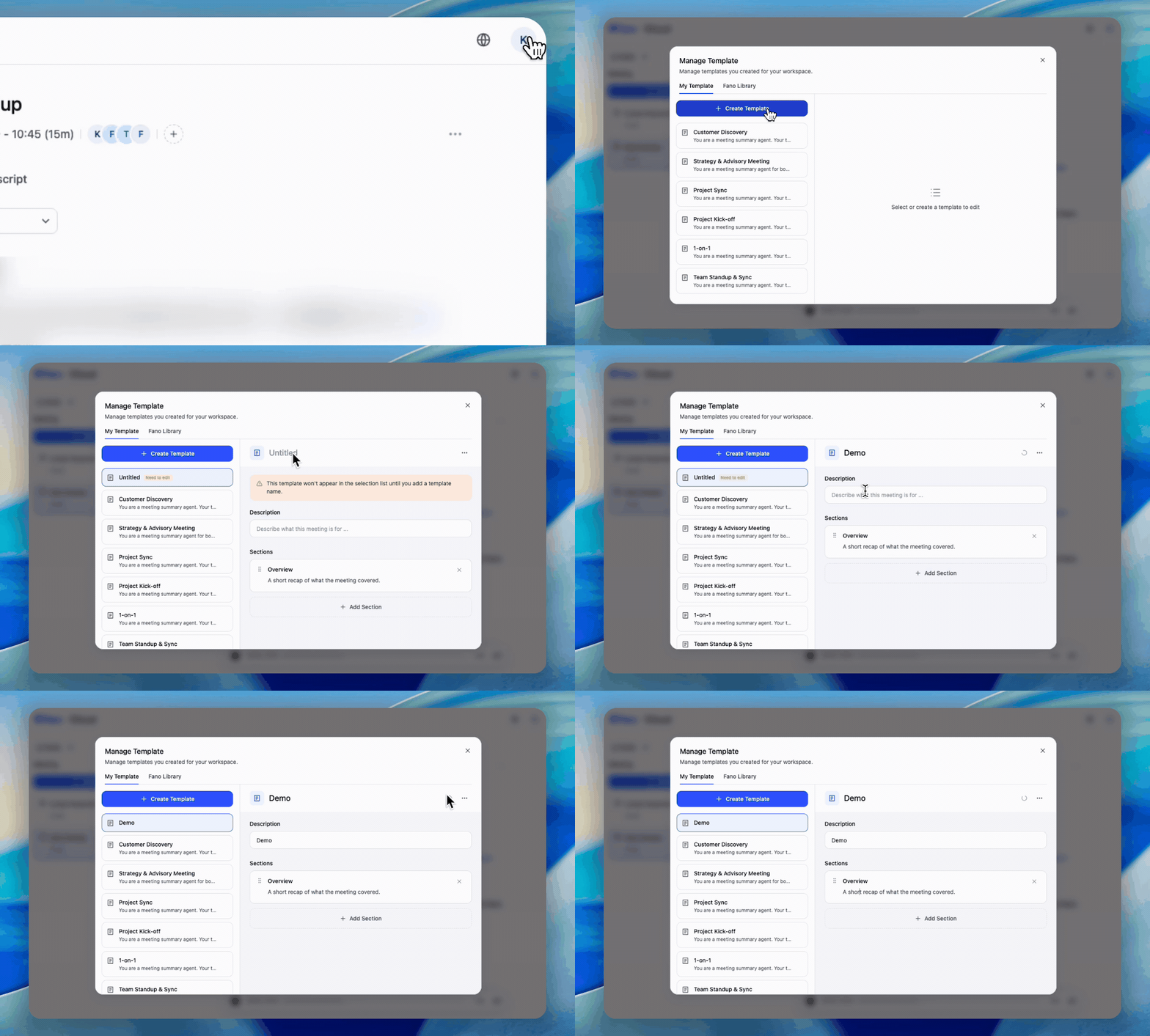
Create a template, name it, and shape its sections
- In Manage Template → My Template, click + Create Template. A new template called Untitled appears and opens for editing.
- Name it — click Untitled at the top of the editor and type. Until you do, a notice tells you the template won’t appear in the selection list.
- Add a description in the “Describe what this meeting is for…” field, so you can tell your templates apart later.
- Shape the sections. Every new template starts with one called Overview (“A short recap of what the meeting covered.”). Each section has:
- a title — the heading that appears in the summary
- an instruction — what you want the AI to capture under that heading
- Click + Add Section for more, the × to remove one, and drag the handle on the left to reorder.
The instruction is what does the work. A section titled “Risks” with the instruction “List any risk, dependency or blocker raised, and who raised it” produces a far more useful section than a title on its own.
Start from the Fano Library
If a built-in template is close to what you want, copy it instead of starting over.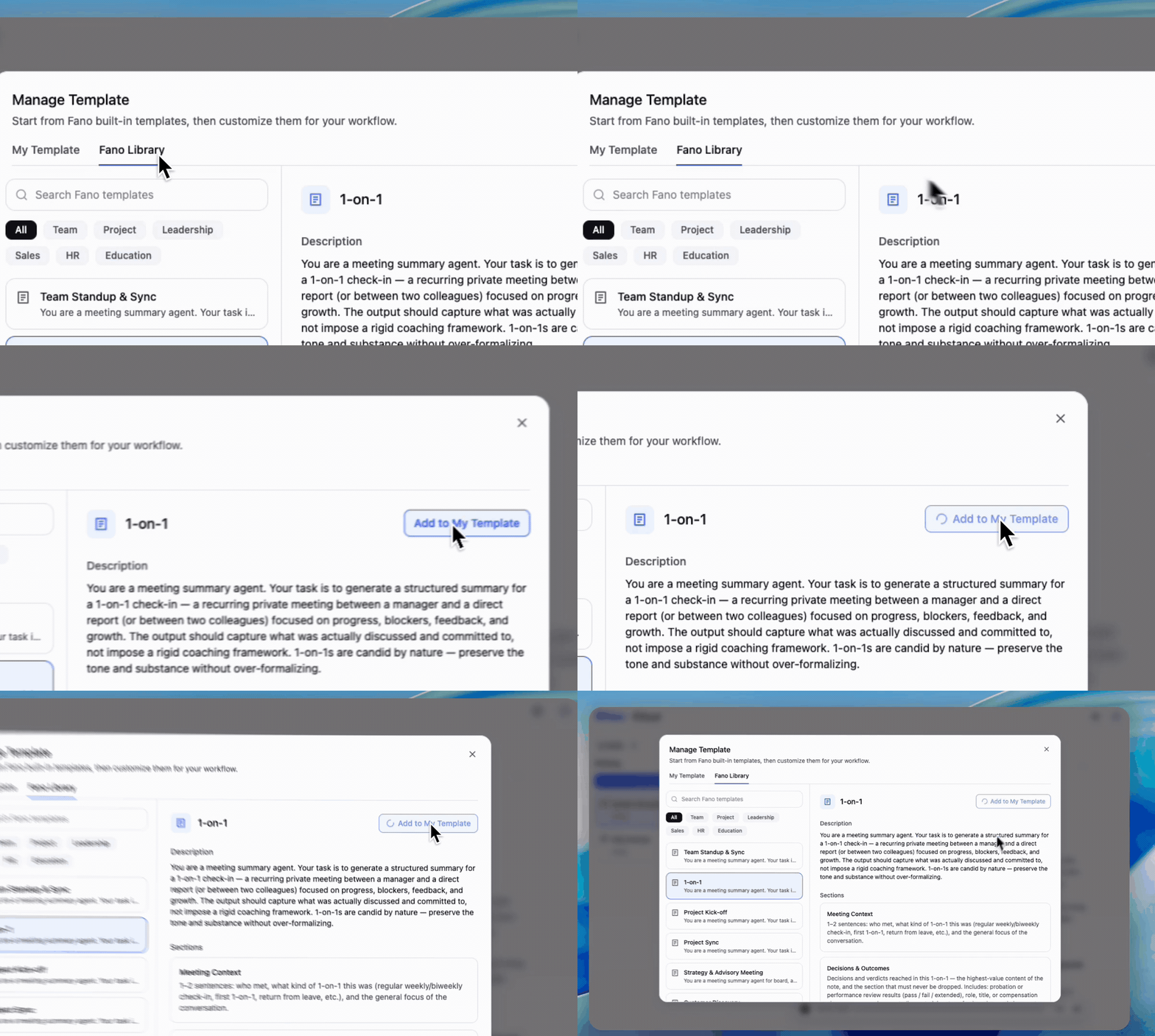
Preview a built-in template, then add it to My Template
- Open Manage Template → Fano Library.
- Find a template — use Search Fano templates, or filter by category: Team, Project, Leadership, Sales, HR, Education.
- Click one to preview its description and full section list.
- Click Add to My Template. You’ll see a brief loading state, then an Added confirmation.
- Open your copy under My Template and tailor it — rename sections, rewrite instructions, add or drop sections.
Apply a custom template
Your finished templates appear under a My Template group in the template picker, alongside the Fano built-ins:- Open a meeting and go to the Summary tab.
- Click the template dropdown.
- Pick a template from My Template. A check mark shows which one is currently applied.
- The summary regenerates in your structure.
Why a template might not appear in the picker
A template needs a name before it can be used. Until then it stays a draft:- it shows as Untitled in the template list
- it carries a Need to edit badge
- it’s kept out of the template picker, so you can’t accidentally apply an unfinished template
Templates during onboarding
When you first join, Fano prepares a set of starter templates suggested for your role, and they appear under My Template — so you have something useful to summarize with from day one, before you’ve built anything yourself. Treat them as a starting point: copy, rename, and rewrite the instructions to match how your team actually works.Deleting a template
Deleting asks for confirmation first, and warns you about the consequence: The transcript and audio for those meetings are unaffected — you can always regenerate a summary with a different template.What’s next?
Built-in Templates
See the nine Fano templates and what each one captures.
Editing Summaries
Fine-tune a specific summary by hand.