

Export a summary
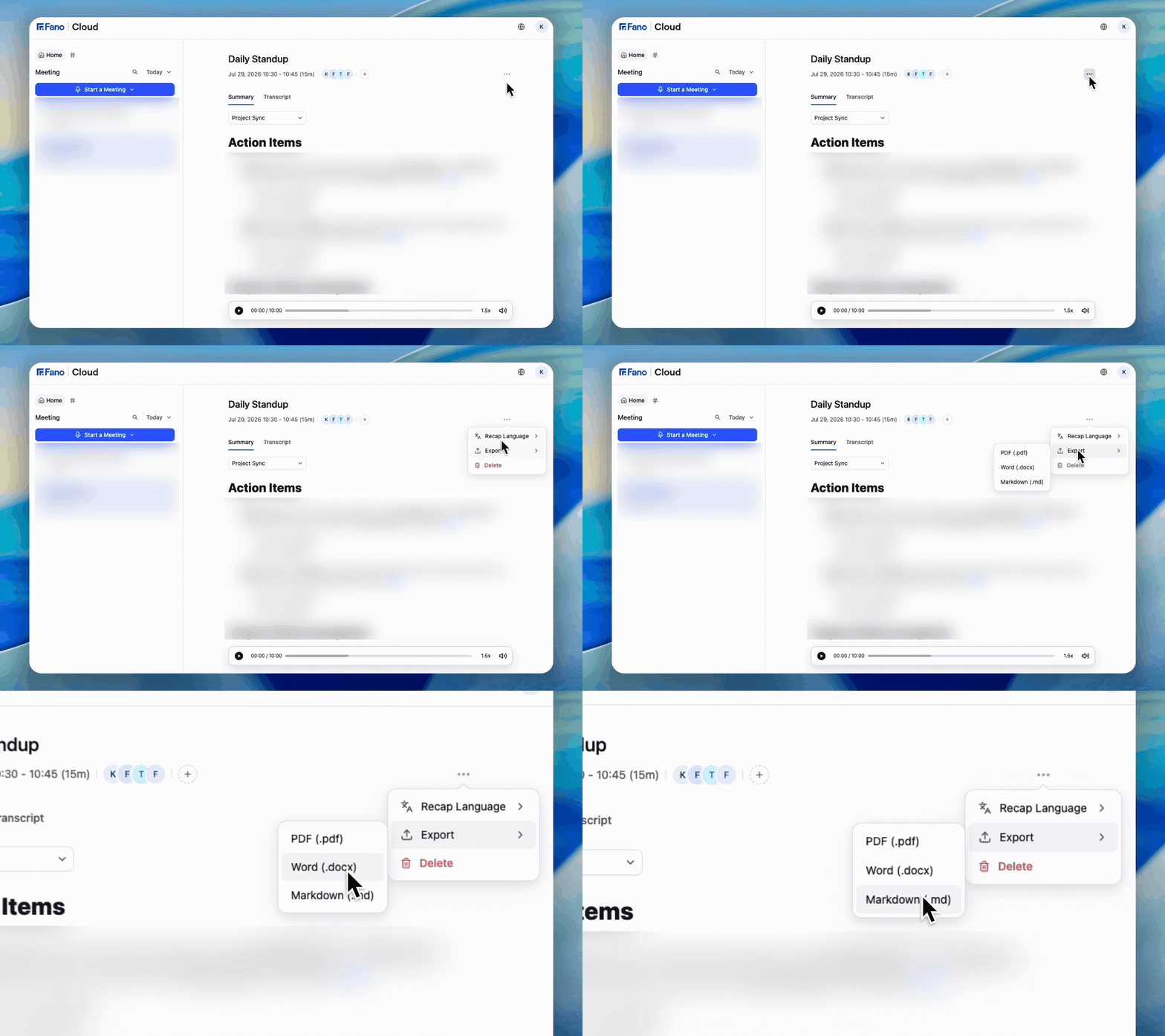
Open the ⋯ menu, choose Export, then pick a format
- Open the meeting you want to export.
- Open the ⋯ menu in the meeting header.
- Choose Export.
- Pick your format:
You can also export the transcript when you need the full word-for-word record rather than the summary.
What’s included
Exports reflect the summary as it currently stands, which means:- the template currently applied
- the recap language currently applied
- any edits you’ve made by hand
Two common uses
Distribute to non-users. Export as PDF or Word and send it on. Recipients don’t need a Fano account, and nothing else in your workspace becomes visible to them. Keep a snapshot before a destructive change. Switching recap language, editing a summary, deleting a template, and deleting a meeting are all one-way. An export is the only copy that survives them.What’s next?
Recap Language
Set the language before you export.
Delete a Meeting
Export first — deletion is permanent.