

Change the language of one summary
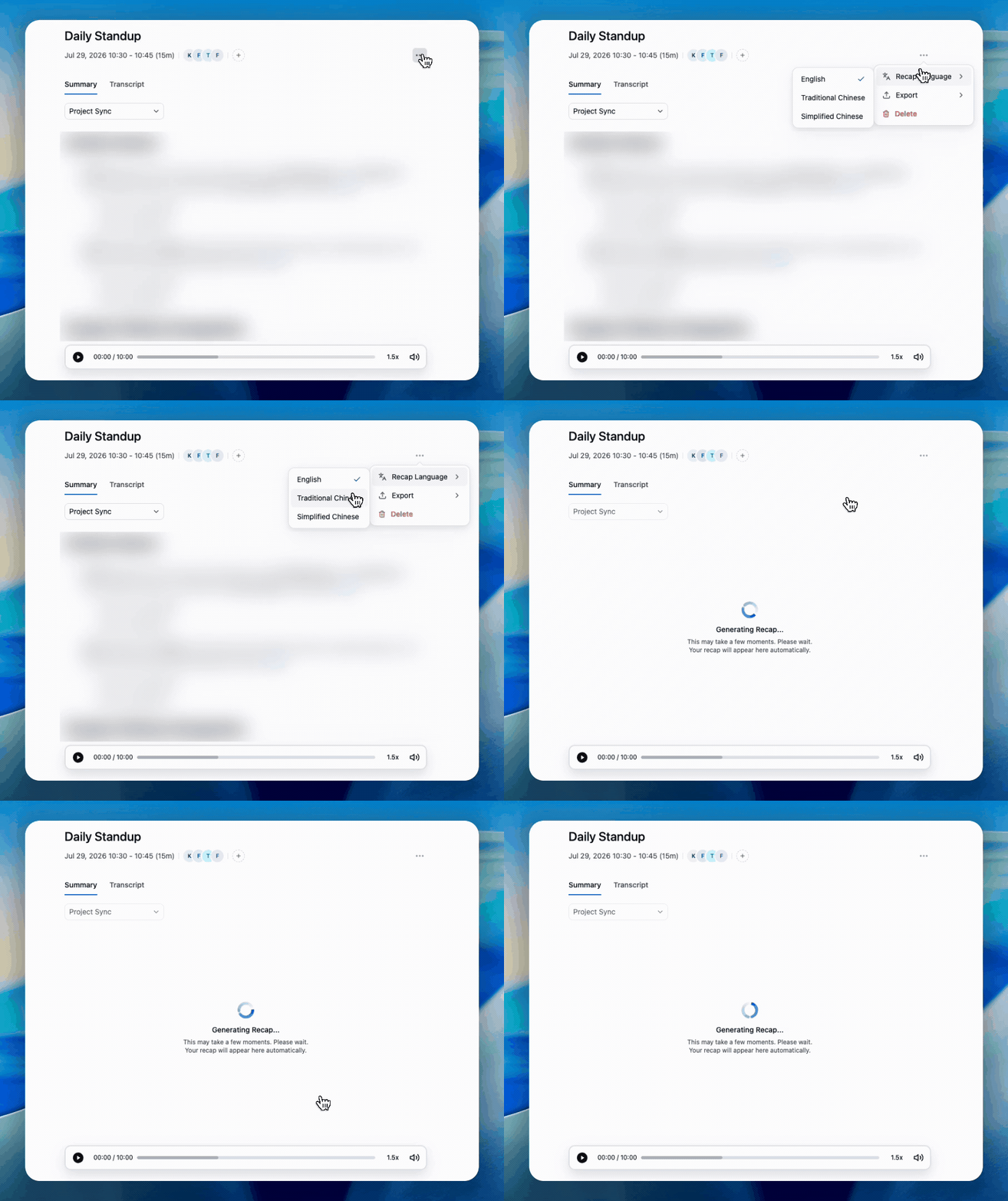
⋯ → Recap Language, then pick the language you need
- Open the meeting.
- Open the ⋯ menu in the meeting header.
- Hover Recap Language. A check mark shows the language the summary is in now.
- Pick English, Traditional Chinese or Simplified Chinese.
This is a per-meeting change. Your account default stays as it is — set that under Settings → Profile & Preferences → Summary Language.
Before you switch
Recap language vs. spoken language
Three different things are easy to confuse:
A Cantonese meeting can have a Cantonese-accurate transcript and an English summary — that’s the normal case for teams reporting to non-Cantonese readers.
What’s next?
Exporting & Sharing
Save the summary as PDF, Word or Markdown before switching.
Profile & Preferences
Set your default summary language for all future meetings.