

Search your meetings
Search covers all of your recorded meetings, so you can find a discussion without remembering when it happened.- Click the search icon in the Meeting sidebar header.
- Before you type, the panel lists your recent meetings — often the one you want is already there.
- Type what you’re looking for. Results show the meeting name with your term highlighted, plus the date and participant count.
- Press ↵ to open the highlighted result, or click it.
Narrowing results
Two filters sit at the top of the search panel:Tag your meetings
Tags are labels you create yourself — a client name, a project, a workstream, a recurring ritual.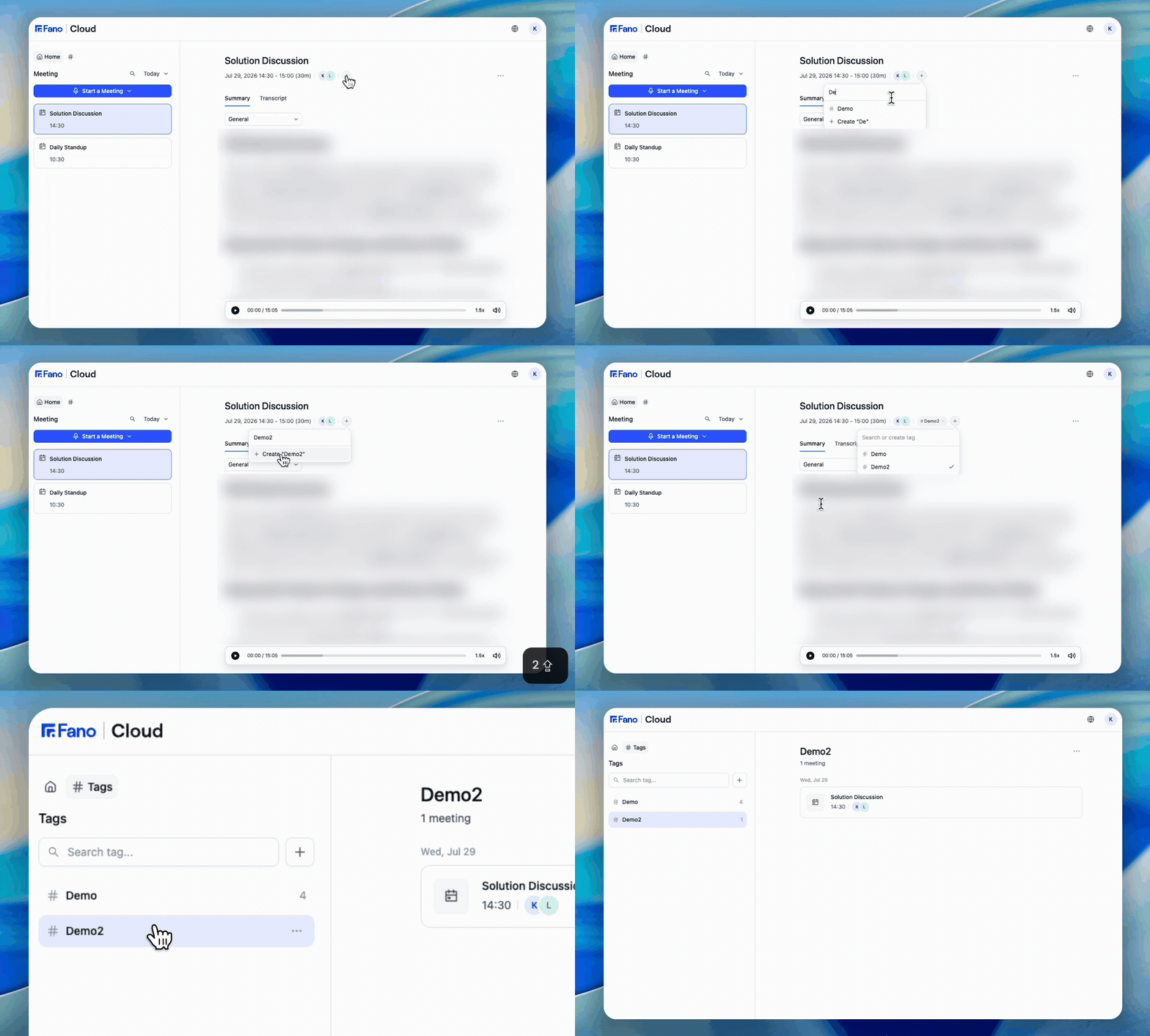
Add a tag from the meeting header, then find it again under Tags
Add a tag to a meeting
- Open the meeting and click the + button next to the participant avatars.
- In the Search or create tag box, start typing.
- Pick an existing tag from the list, or choose the Create ”…” option to make a new one with the text you typed.
Tags are private to you. Nobody else in your workspace sees your tags, so you can name them however makes sense to you.
Browse meetings by tag
- Click the # icon next to Home in the sidebar.
- The Tags panel lists every tag you’ve created with the number of meetings on each.
- Click a tag to see its meetings, grouped by date.
Delete a meeting
- Open the meeting.
- Open the ⋯ menu.
- Select Delete.
What’s next?
Exporting & Sharing
Save a copy before deleting anything.
Audio & Timestamps
Jump from a summary point to the moment it was said.